It can be found in Masterdocs\CAD\Revit\Waterman Library\Families\Annotations and is called W_ANO_X_Banner.
It is also loaded into the Waterman Template

It can be found in Masterdocs\CAD\Revit\Waterman Library\Families\Annotations and is called W_ANO_X_Banner.
It is also loaded into the Waterman Template
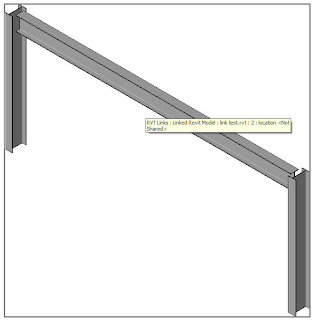
If you hover over the item you wish to hide and hit the tab key to will be able to select it and then hide in view.

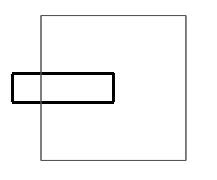 This will wake up the Disallow Join button.
 You now also get a nice little icon showing wich walls have been stopped from joining.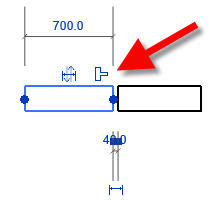


Easy now we know !!!!
Thanks to Simon Jones for showing me this.
 Pick Split Segment then select the Section Mark. you can then drag one part of the Section Mark around.

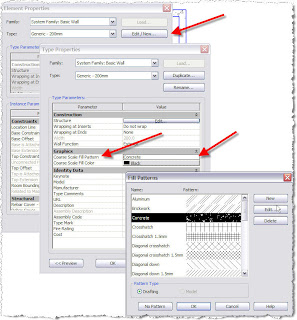


 If not already loaded you can Load and Browse to the file ..
As always if you find anything I have missed or got wrong please let me know.
As most of you already know ..... I do make mistakes.
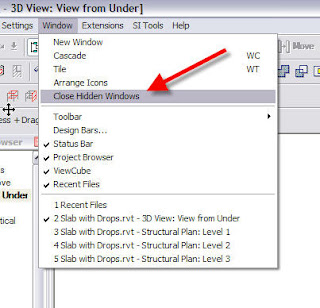 Scott Davis of Autodesk added a comment to this post regarding adding a "Keyboard Shortcut" to this command. Excellant tip thanks Scott.
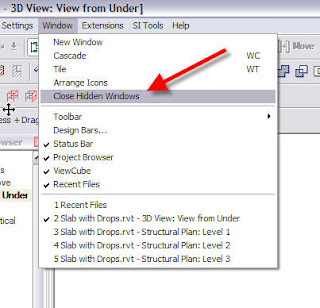
 To do this go find the file called KeyboardShortcuts.txt it should be located in your C:\Program Files\Revit Structure 2009\Program folder. Open up the file and scroll down to the window menu section and add a xx in. Close and open Revit. Then all you have to do is type xx to close all of your hidden windows.